


 Ultra aboneliği.

As a Twitch affiliate or partner, you’ll unlock the ability to create your own. We’ve already given a detailed breakdown on how to unlock and add them to your stream (check out that article here). But today, we are excited to show you how to customize them with Emotes Creator Tool, an app available in the Streamlabs Desktop App Store.
How to Create Your Emotes
To start, go to the Emotes Creator Tool App Store page here and click Install. Once you’ve successfully install Emotes Creator Tool, you can begin to customize your emotes.
Open Streamlabs Desktop, and you’ll see a new Emotes Creator Tool icon on the left-hand side. Click on it, and we will bring you to a screen that allows you to customize every aspect of your emote.
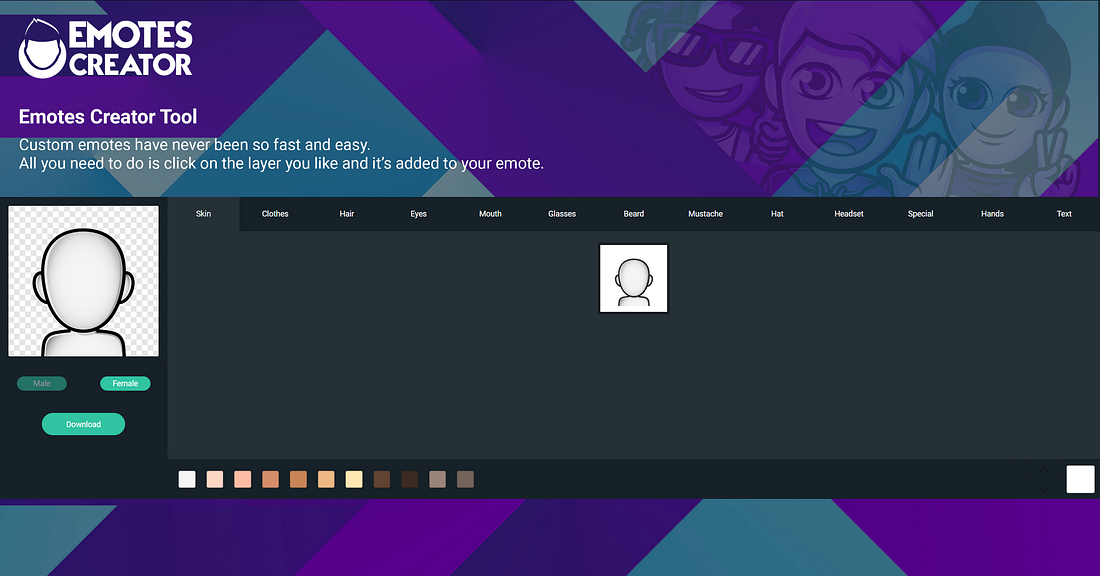
On this page, you can change anything from your style of clothes, length of hair, glasses, headset, and much more.
Emotes Creator Tool also gives you the freedom to create an emote for every moment of your stream. If there is a super hyped-up moment on stream, you can create an emote with a huge smile and pog text so your viewers can celebrate along with you.

Or, if you fail miserably, create a custom emote so your viewers can sympathize with you while you wallow in sadness.

There are hundreds of different combinations you can choose from. The options are endless, and the emotes you create are only limited to your imagination.
After you are done customizing you can download four transparent PNG versions for each emote: (28x28px — 56x56px — 112x112px — 512x512px). Click “download” and each version will be conveniently together in a zip folder waiting to be extracted. Upload these emotes to your streaming platforms and you're all set!